Wi-Fi Hotspot Advertising & Guest Monetization
Configure targeted Hotspot advertisements, mandatory video watch time, direct customer campaigns, paid vouchers, and revenue measurement in ISPbills.
Configure targeted Hotspot advertisements, mandatory video watch time, direct customer campaigns, paid vouchers, and revenue measurement in ISPbills.
On this page
ISPbills keeps the existing captive-portal login form and account checks, then shows an eligible banner, full-page promotion, video, or external HTML creative immediately before RouterOS grants internet access. Group Administrators can target the campaign by router, Hotspot package, customer, device type, and portal language, then measure impressions, completions, and clicks from the Hotspot dashboard.
The module also links to the existing paid-voucher inventory, so advertising and paid guest access can be managed from the same Hotspot workspace.
Only the Group Administrator can configure monetization settings, create or edit advertisements, choose audiences, and view campaign analytics. Operators and staff do not receive these controls.
Before You Start
- Complete Hotspot Setup and confirm that captive-portal login works.
- Register every participating MikroTik router in the correct ISP group.
- Create any Hotspot packages you want to target.
- Configure the Walled Garden for login and payment traffic.
- Prepare media that you own or are authorized to display.
Open the Hotspot Workspace
Select Hotspot from the Group Administrator sidebar. The workspace is divided into focused pages:
| Page | Purpose |
|---|---|
| Dashboard | View reach, completion, click-through, audience, campaign, router, and voucher metrics. |
| Advertisements | Search, review, pause, activate, edit, or remove campaigns. |
| Create Advertisement | Build a new banner, interstitial, or video campaign. |
| Monetization Settings | Enable delivery, choose the default layout and cooldown, and configure the voucher offer. |
| Paid Vouchers | Open the existing recharge-card workspace used for paid internet access. |
| Logs | Review Hotspot login and customer activity. |
| Login Template | Download or manage the captive-portal template. |
Enable Monetization
Open Hotspot → Monetization Settings, then configure:
- Enable guest monetization — the master delivery switch. Disabling it preserves campaigns and analytics but stops advertisements from appearing.
- Default layout — select Spotlight, Split screen, or Minimal and the live device preview changes immediately. A campaign can inherit this setting or choose its own layout.
- Frequency cap — the minimum interval before a device can receive another eligible campaign. Set
0only when an advertisement should be eligible at every login. - Voucher offer — optionally show a paid-access heading and message below the advertisement.
Save the settings before activating a campaign.
Advertisement Formats
| Format | Best use | Creative requirement |
|---|---|---|
| Banner | Sponsor artwork, local offers, package promotions | JPG, PNG, WebP, GIF, or a direct HTTP/HTTPS image URL |
| Interstitial | Short announcements or text-led offers | Media is optional |
| Video | Product demos, sponsor clips, venue promotions | MP4, WebM, or a direct HTTP/HTTPS video URL |
| External HTML | Third-party ad widgets or hosted creative snippets | HTML/embed code whose dependencies use exact HTTP/HTTPS hosts |
Uploaded media can be up to 50 MB and is kept in private application storage. The guest receives it only through the session-bound campaign media route.
External HTML runs in an isolated frame without same-origin, form, popup, or top-page navigation privileges. Forms, base tags, embedded objects, applets, and redirecting meta tags are rejected.
Create a Campaign
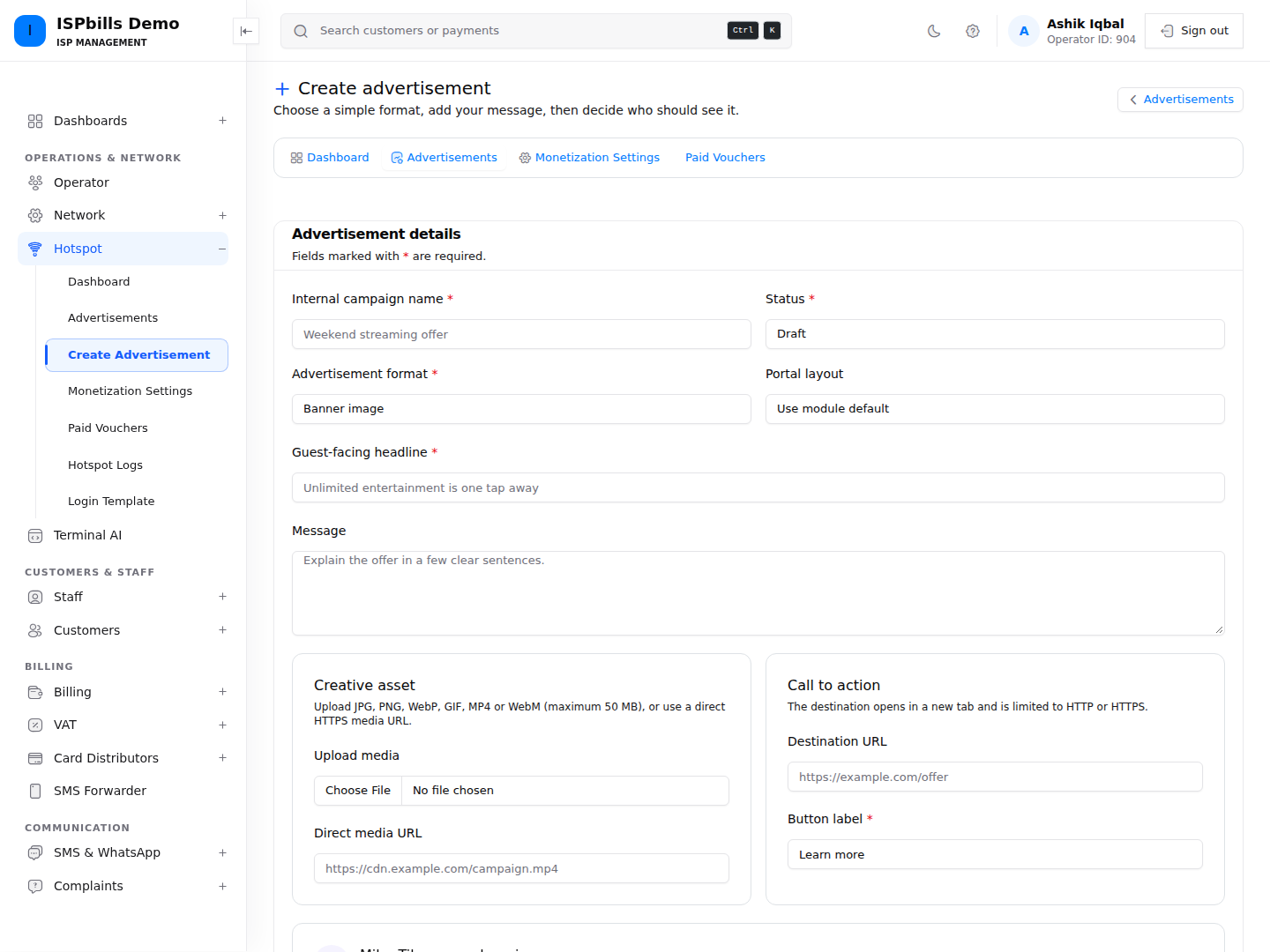
Open Hotspot → Create Advertisement and complete these areas.
Campaign and creative
- Give the campaign an internal name and choose Draft, Active, or Paused.
- Select the advertisement format and portal layout.
- Write the guest-facing headline and message.
- Upload the creative or provide its direct media URL.
- Optionally add an HTTP/HTTPS destination and button label.
External domains and MikroTik access
ISPbills detects exact hostnames in the media URL, destination URL, and external HTML, then automatically reconciles managed Walled Garden rules on the campaign’s selected routers. A campaign with no router selection applies to every router in the ISP group. When an active campaign is paused, retargeted, or deleted, stale ISPbills-managed advertising rules are removed; manual and unrelated rules are never changed.
If a third-party script loads a dependency whose URL does not appear in its embed code, add that exact hostname under Additional dependency domains. Wildcards and URLs containing credentials are rejected. Router synchronization is queued after each campaign change, retried on failure, and reconciled every 15 minutes so a temporarily offline router catches up automatically.
Use Draft while testing. Only Active campaigns inside their configured schedule are eligible for delivery.
Audience targeting
Choose one audience mode:
- All eligible Hotspot guests — every recognized or new guest can match.
- Customers on selected packages — only existing Hotspot customers currently assigned to one of the selected packages can match.
- Specific customers (direct push) — search by name, mobile number, customer ID, or MAC address and select the exact customers.
You can narrow any audience further by:
- one or more routers;
- mobile/tablet or desktop device;
- English, Bangla, or both portal languages;
- start and end date;
- campaign priority from 0 to 100.
Specific-customer campaigns are evaluated before package campaigns, and package campaigns before general campaigns. Within the same audience level, the higher priority is delivered first. A direct push therefore appears on the selected customer’s next eligible Hotspot login; it is not an SMS or browser push notification.
Customer and package targeting is resolved only after the submitted mobile number, MAC address, router, and ISP group have been validated. A campaign cannot target or expose customers from another ISP group.
Require a Video Watch Time
For a video campaign, enable Require playback and set Required playback seconds from 1 to 120.
The guest must actively watch that amount of video before Continue to Wi-Fi becomes available:
- only visible, forward playback at normal speed counts;
- paused, stalled, background-tab, or hidden-page time does not count;
- seeking ahead and playback-speed changes are blocked and do not earn progress;
- the server verifies media-time heartbeats instead of trusting elapsed page time;
- if a short clip ends before the required duration, it replays until the full watch time is completed;
- login resumes only after the server accepts the session- and router-bound completion proof.
Set Force video again after to make the same matched device watch that campaign again after a chosen interval. The allowed range is 0 to 10,080 minutes (seven days). A value of 0 uses the general frequency cap from Monetization Settings.
Paid Internet Vouchers
Hotspot → Paid Vouchers reuses the existing Recharge Cards workflow. Create cards for Hotspot packages, distribute or sell them, and monitor available and used inventory. The optional voucher offer on an advertisement can tell guests where or how to buy a code.
See Recharge Cards and Hotspot Self-Service for the complete purchase and activation flow.
Ways to Earn Revenue
The suitable commercial model depends on your venue, audience, advertiser, and local rules.
| Model | Example charging method | Useful evidence |
|---|---|---|
| Fixed sponsorship | Monthly fee for a venue, router group, or campaign period | Schedule, targeted routers, impressions, completions |
| Cost per thousand impressions (CPM) | impressions ÷ 1,000 × agreed CPM |
Valid impressions and campaign dates |
| Cost per click (CPC) | recorded clicks × agreed click price |
Click count and destination |
| Mandatory video sponsorship | Fixed fee or completed-view rate | Video completions and required watch time |
| Voucher margin | voucher selling price − service and distribution cost |
Available, sold, and redeemed voucher records |
| Package upsell | Promote a faster or longer package to selected package users | Target package, clicks, and later package sales |
Illustrative BDT example
Suppose a café network records 30,000 sponsor impressions at BDT 150 CPM, 400 clicks at BDT 5 per click, and sells 120 vouchers with BDT 20 contribution margin each:
Impression revenue = 30,000 ÷ 1,000 × BDT 150 = BDT 4,500
Click revenue      = 400 × BDT 5                 = BDT 2,000
Voucher margin     = 120 × BDT 20                = BDT 2,400
Illustrative total                                = BDT 8,900
This is an example, not a revenue guarantee. Agree in writing how impressions, completed views, clicks, invalid traffic, campaign dates, tax, and payment will be handled. ISPbills reports campaign activity; it does not automatically invoice a third-party advertiser.
Example Campaigns
Venue sponsor banner
Target the routers at one café or waiting area, use a banner with a sponsor offer, and apply the general frequency cap so regular guests are not shown the same message too often.
Package upgrade promotion
Choose Customers on selected packages, select entry-level Hotspot plans, and link the call-to-action to your upgrade or purchase flow.
Direct customer message
Choose Specific customers, search for the intended subscribers, and activate the campaign. The selected-user campaign receives the highest audience priority on their next eligible login.
Sponsored mandatory video
Upload an MP4 or WebM, require a realistic watch duration, and choose a rewatch interval. Test the full video and login continuation on a phone before selling the placement.
Read the Dashboard
The dashboard uses tenant-scoped data and includes:
- 30-day impression, completion, and click-through KPIs;
- a 14-day engagement trend graph;
- completion and click-through radial metrics;
- device and portal-language distribution charts;
- live, paused, and draft campaign readiness;
- direct-user and package-targeted campaign counts;
- router coverage, voucher inventory, and top advertisements.
An impression means the campaign page was shown. A completion means the guest satisfied the campaign gate and continued. A click means the tracked call-to-action was opened. These measurements are not proof of a sale.
Launch Checklist
- Create the campaign as Draft.
- Confirm the creative, text, destination, schedule, and audience.
- Confirm the detected and additional dependency domains, then test from a targeted router and device.
- For package or direct targeting, test with both a matching and non-matching customer.
- For mandatory video, test pause, tab switching, seeking, speed changes, a short clip, and completion.
- Activate the campaign and confirm the first impression on the dashboard.
- Review performance and guest experience regularly; pause stale or overly frequent campaigns.
Privacy and Responsible Advertising
The analytics store device and visitor network identifiers as one-way hashes rather than readable values. Campaign configuration still needs responsible operational handling:
- use media and trademarks only with permission;
- avoid sensitive targeting or misleading claims;
- keep mandatory watch time proportionate;
- disclose sponsored content where local law or contract requires it;
- use HTTPS destinations and verify them before launch;
- define retention, consent, tax, and advertiser-reporting rules for your jurisdiction.
Troubleshooting
No advertisement appears
- Confirm monetization is enabled and the campaign status is Active.
- Check the start/end dates and general frequency cap.
- Confirm the login uses a targeted router, device, language, package, or customer.
- Remember that a forced-video interval can make that campaign temporarily ineligible.
Customer search returns no result
Enter at least two characters and confirm the account is a Hotspot customer in the current ISP group. Search accepts name, mobile, numeric customer ID, or MAC username.
Video progress does not increase
Keep the page visible, use normal playback speed, and check the connection to ISPbills. Pausing, seeking ahead, leaving the tab, or a stalled video does not count.
Video ends before the required time
The clip restarts automatically. Keep watching until the configured cumulative playback time is complete.
Customer sees the advertisement too often
Increase Force video again after for that mandatory video, or increase the general frequency cap in Monetization Settings.
External creative does not load
Confirm every dynamically loaded dependency is listed as an exact additional domain, the router has working API credentials, and its Walled Garden contains the ISPbills Hotspot advertising rules. The scheduled reconciliation retries routers that were offline during a campaign change.