MikroTik Bridge Management
Create, inspect, and safely remove RouterOS bridges from the MikroTik monitor
Create, inspect, and safely remove RouterOS bridges from the MikroTik monitor
On this page
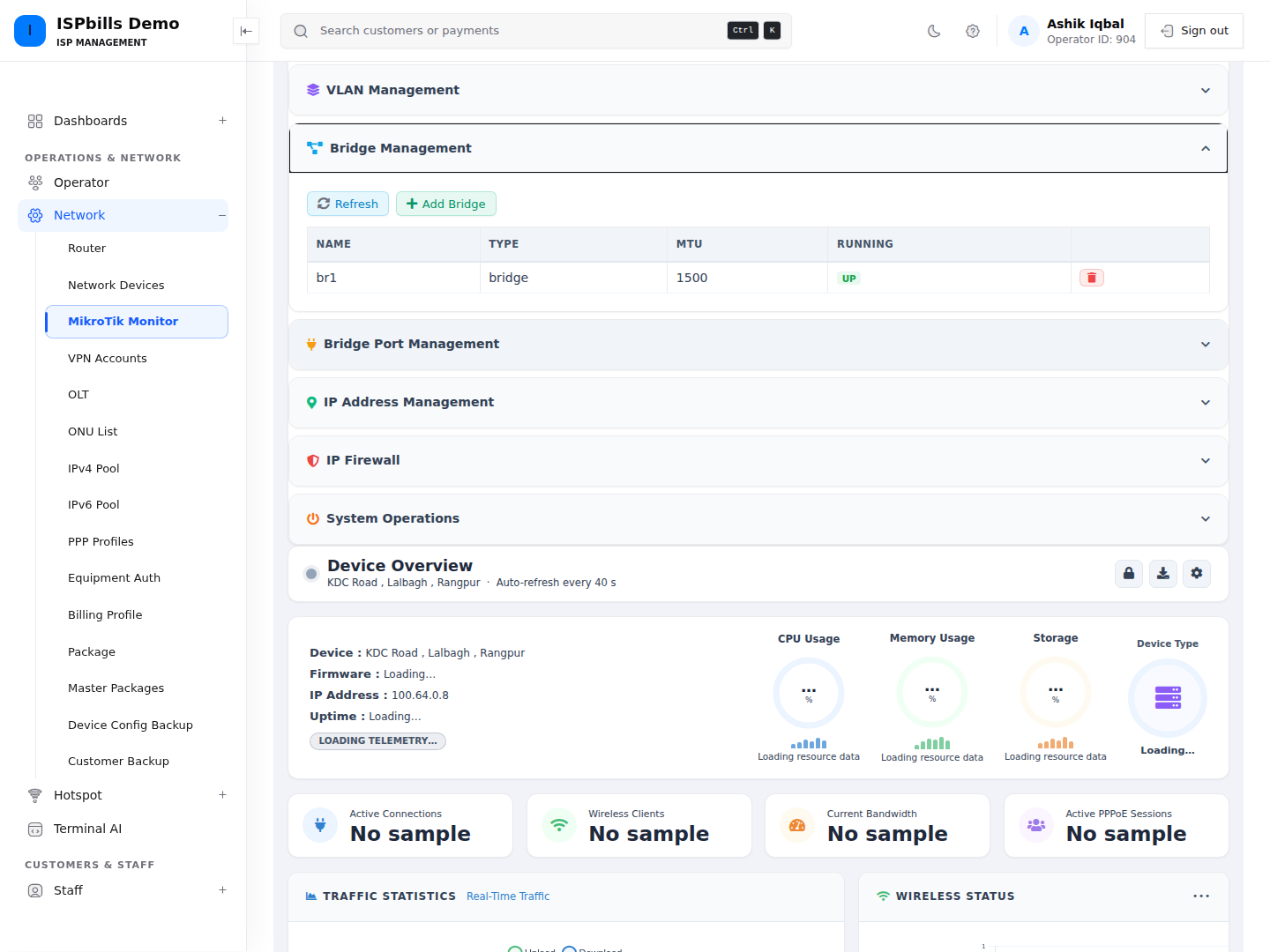
The Bridge Management panel reads /interface/bridge from the selected router. It displays each bridge’s name, type, actual MTU (or MTU), and UP/DOWN running state.
See MikroTik Device Management for shared prerequisites and permissions.
Create a bridge
- Open Device Management → Bridge Management.
- Click Add Bridge.
- Enter Bridge Name.
- Click Create Bridge.
The name is required text with a maximum of 64 characters. The monitor form sends only the name. It does not accept a comment or expose STP, VLAN filtering, protocol mode, MTU, or other bridge properties.
Creating a bridge does not add ports to it. Use Bridge Port Management after the bridge exists.
Remove a bridge
On a non-NOC management page, click the bridge’s trash icon and approve the warning Delete this bridge? All ports will be removed. ISPbills then asks RouterOS to remove the bridge by its internal .id.
The application does not inventory or detach bridge ports and dependent IP/services before sending the removal. Verify the bridge ports, VLANs, IP addresses, DHCP services, and management path yourself. NOC users have no bridge delete route.
There is no bridge edit workflow in this panel. Configure properties not listed above directly in RouterOS.
Troubleshooting
- If creation fails, verify the name is present, no longer than 64 characters, and acceptable to RouterOS.
- If the bridge remains DOWN, check its member ports and physical/link state.
- If RouterOS refuses removal, inspect dependent configuration on the router. ISPbills does not remove dependencies first.
- A permitted NOC user can create bridges but cannot remove them from the NOC route set.