Settings and Integrations
System-level configuration for your ISP portal
System-level configuration for your ISP portal
On this page
The Settings section contains the main system-level configuration for your ISP portal. These options control how your business appears to customers, how payments are processed, how messages are sent, and how your account is secured.
Most settings are available to Group Admins. Operators and Sub-Operators can access a subset depending on their permissions.
At a glance
| Area | What you configure | Sub-page |
|---|---|---|
| App Settings | Customer, billing, reseller, notification, privacy, Hotspot, and automation policies | App Settings |
| ISP Profile | Company name, logo, address, and branding | ISP Profile |
| Payment Gateways | Online payment methods customers can use to pay bills | Payment Gateways |
| SMS Gateway | SMS provider credentials and sender ID | SMS Gateway |
| VAT | Tax profiles and VAT collection rules | VAT |
| Two-Factor Authentication | 2FA enforcement for your account | Two-Factor Authentication |
ISP Profile
The ISP Profile page lets you configure your company identity:
- Company name and logo — displayed on the customer portal, invoices, and SMS sender ID.
- Contact information — address, phone number, email, and website shown on printed invoices and the suspension portal page.
- Branding colours — customise the look of the customer-facing portal.
Keeping your profile complete and up to date ensures that customers see professional, consistent branding across every touchpoint.
App Settings
App Settings controls group-wide operational behaviour rather than branding or gateway credentials. Use it to manage customer self-service, reseller authority, billing and suspension rules, notification default/fallback channels, privacy, identity verification, MAC binding, the Woosmap or Google GIS provider, and optional PPPoE access through Hotspot.
Payment Gateways
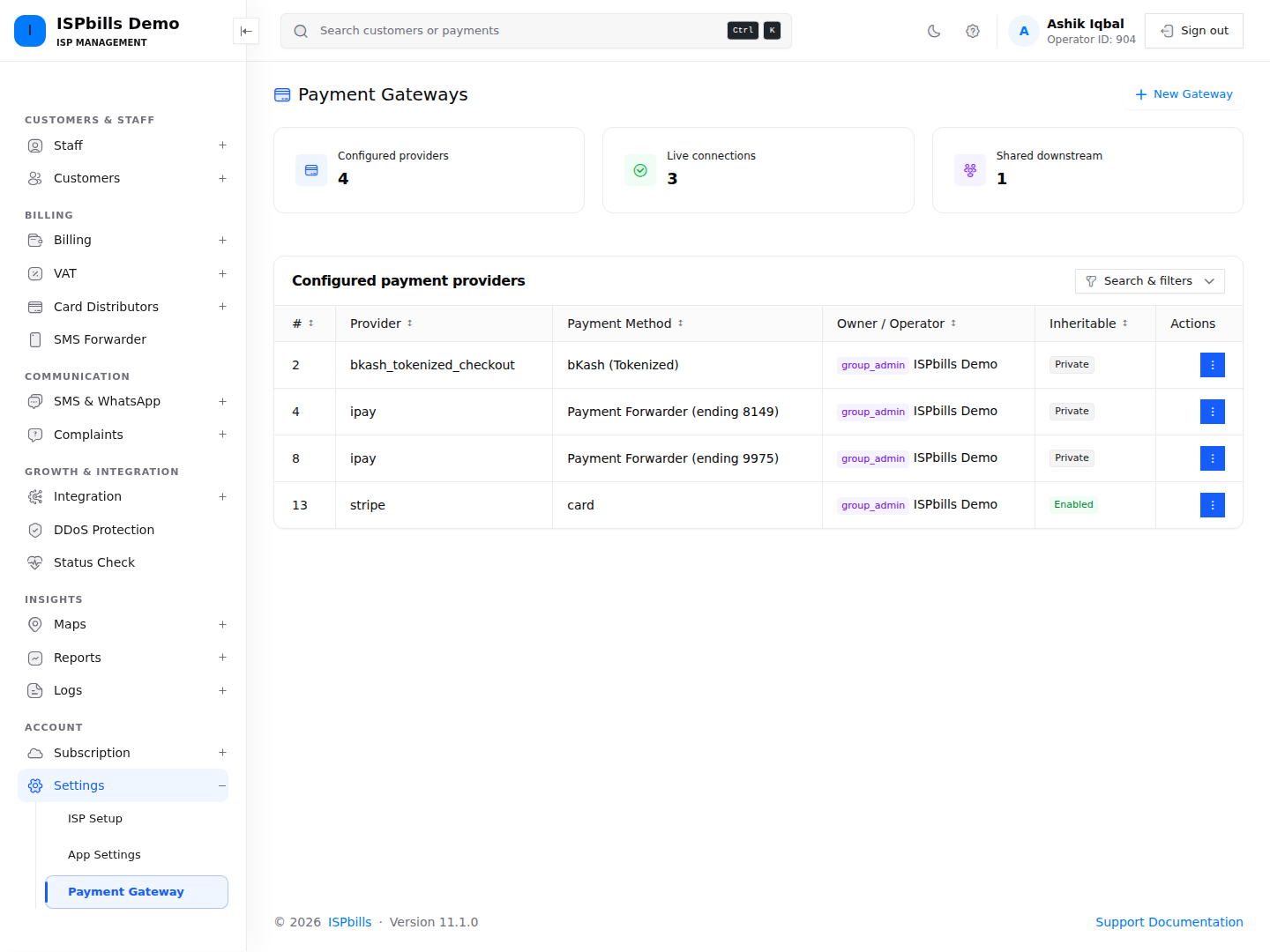
ISPbills supports a wide range of online payment gateways. From this page you can:
- Add or remove gateways — enable only the payment methods relevant to your market.
- Enter credentials — provide the API keys, merchant IDs, and secrets required by each provider.
- Toggle sandbox mode — test gateway integrations before going live.
- View transaction history — see all payments processed through each gateway.
Supported gateways include bKash (Checkout and Tokenized), Nagad, SSLCommerz, ShurjoPay, AamarPay, EasyPayWay, WalletMix, BdSmartPay, Razorpay, Send Money (manual), and recharge-card payments.
SMS Gateway
The SMS Gateway page controls how ISPbills sends text messages to your customers. You can:
- Choose an SMS provider — ISPbills supports multiple providers including ADN SMS, SSL Wireless, BulkSMS BD, SMSBD (SMSPulse), Elitbuzz-family gateways, Robi SMS, SmsNet, SmsInBD, 24SmsBD, and BdSmartPay SMS.
- Enter API credentials — provide the API key, username, password, or token required by your provider.
- Set a sender ID — customise the name that appears when customers receive an SMS.
- Test the connection — send a test message to verify your configuration before use.
ISPbills uses a hierarchical gateway selection: if an operator has their own gateway configured it is used first; otherwise the system falls back to the parent Group Admin’s gateway.
VAT
If you need to charge value-added tax (VAT) or any other tax, configure it here:
- Create VAT profiles — define one or more tax rates (e.g. 15 % standard, 5 % reduced).
- Assign profiles to packages or billing profiles — control which services attract which tax rate.
- Track VAT collections — view collected tax amounts for reporting and remittance.
VAT is calculated automatically on customer invoices once a profile is assigned.
Two-Factor Authentication
Protect your account with an additional layer of security:
- Enable or disable 2FA — when enabled, you must provide a one-time code at each login in addition to your password.
- Authenticator app — use any TOTP-compatible app (e.g. Google Authenticator, Authy) to generate codes.
- WebAuthn / Secure Login — register biometric credentials or hardware security keys for passwordless authentication.
- Trusted devices — manage the list of devices that are allowed to skip the 2FA prompt.
We strongly recommend enabling two-factor authentication for all admin accounts to protect against unauthorised access.
➡️ Set up Two-Factor Authentication
Additional settings
Beyond the core areas above, Group Admins also have access to:
- Notification Settings — choose how and when system notifications are delivered (SMS, WhatsApp, or email).
- Suspension Portal — customise the page that suspended customers see, including your contact details and payment instructions.
- Backup Settings — configure RADIUS/Router authentication continuity and customer credential copies.
- Equipment RADIUS Authentication — grant selected Manager or NOC staff a RADIUS-backed login to managed network equipment.
- Disabled Filters & Menus — hide specific UI elements to simplify the interface for operators or managers.
- Intercom — connect your Intercom account for in-app customer support chat.
- API Clients & Webhooks — manage third-party API credentials and webhook endpoints for external integrations.
Need help? If a setting is greyed out or missing, check that your account role has the required permission. Group Admins have full access; other roles may see a limited set.