MikroTik Bridge Port Management
Attach interfaces to bridges and remove bridge-port memberships from the MikroTik monitor
Attach interfaces to bridges and remove bridge-port memberships from the MikroTik monitor
On this page
The Bridge Port Management panel reads /interface/bridge/port from the router. It displays interface, bridge, hardware-offload value, and Active/Inactive status.
See MikroTik Device Management for shared prerequisites and permissions.
Add a bridge port
The bridge must already exist, and the interface must appear in the router’s live interface list.
- Open Device Management → Bridge Port Management.
- Click Add Port.
- Select Bridge and Interface.
- Click Add Port.
Both fields are required and limited to 64 characters at the server. The form sends only the bridge and interface. It does not expose PVID, frame types, ingress filtering, path cost, horizon, or hardware-offload settings.
Moving a management-facing interface into a bridge can change reachability immediately. Confirm the intended bridge VLAN/IP configuration and keep a recovery path open.
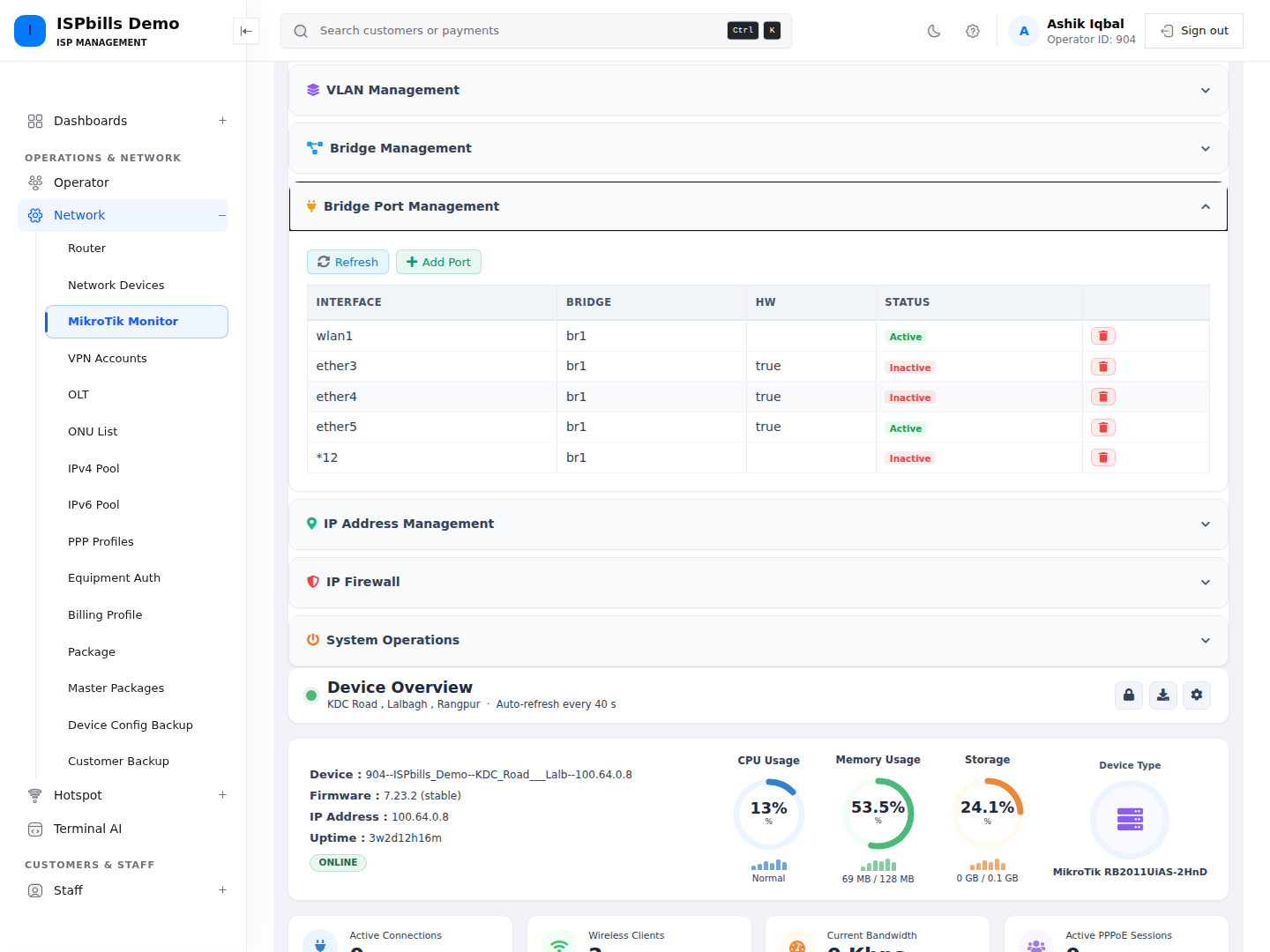
Remove a bridge port
On a non-NOC management page, click the trash icon and approve Remove this port from bridge? This removes the bridge-port membership by its RouterOS .id; it does not delete the physical or logical interface itself.
NOC users can add bridge ports but have no bridge-port delete route.
There is no bridge-port edit workflow. To change properties that are not exposed, use RouterOS directly.
Troubleshooting
- If a bridge selector is empty, create the bridge first, then refresh this panel.
- If an interface is missing, refresh the panel and verify that the API account can read
/interface/print. - RouterOS can reject an interface already used in an incompatible configuration; the page performs only required-field and length validation.
- Inactive is derived from the RouterOS
inactiveflag. Check link state, bridge configuration, and the interface on the router.