Customer OperationsOperator runbook
Customer Actions
Use the customer actions available for each ISPbills service and billing type
Use the customer actions available for each ISPbills service and billing type
On this page
Available actions depend on the customer’s connection type, billing type, state, and the signed-in staff member’s permissions.
| Action | Scope | Applies to |
|---|---|---|
| Show bills | Single | Every type except Hotspot |
| Edit customer | Single | All customers |
| Delete customer | Single or bulk | All customers, subject to permission |
| Activate customer | Single or bulk | PPPoE + Monthly and Static IP + Monthly customers with validity |
| Edit suspend date | Privileged single action | PPPoE + Monthly and Static IP + Monthly |
| Suspend customer | Single or bulk | PPPoE + Monthly and Static IP + Monthly customers with validity |
| Disable customer | Single or bulk | PPPoE + Monthly and Static IP + Monthly customers with validity |
| Edit time, speed, or volume | Privileged single action | Hotspot |
| Edit package | Single or bulk | PPPoE + Monthly, Static IP + Monthly, and Other |
| Recharge | Single or bulk | PPPoE + Daily and Hotspot |
| Change operator | Single or bulk | All customers |
| Generate bill | Single or bulk | Every type except Hotspot |
| Remove MAC binding | Single | PPPoE and Hotspot |
| Edit MAC address | Single | PPPoE and Hotspot |
| Send SMS | Single or bulk | All customers |
| Send payment link | Single or bulk | Non-Hotspot customers that have a bill |
| Advance payment | Single | PPPoE + Monthly, Static IP + Monthly, and Other |
| Create complaint | Single | All customers |
| View internet history | Single | PPPoE and Hotspot |
| Set special price | Single | PPPoE + Monthly, Static IP + Monthly, and Other |
| Record other payment | Single | All customers |
| Disconnect session | Single | PPPoE only |
| Edit billing profile | Single or bulk | PPPoE + Monthly, Static IP + Monthly, and Other |
| Edit service | Single or bulk | Other customers only |
Apply an action
- Open Customers → All Customers.
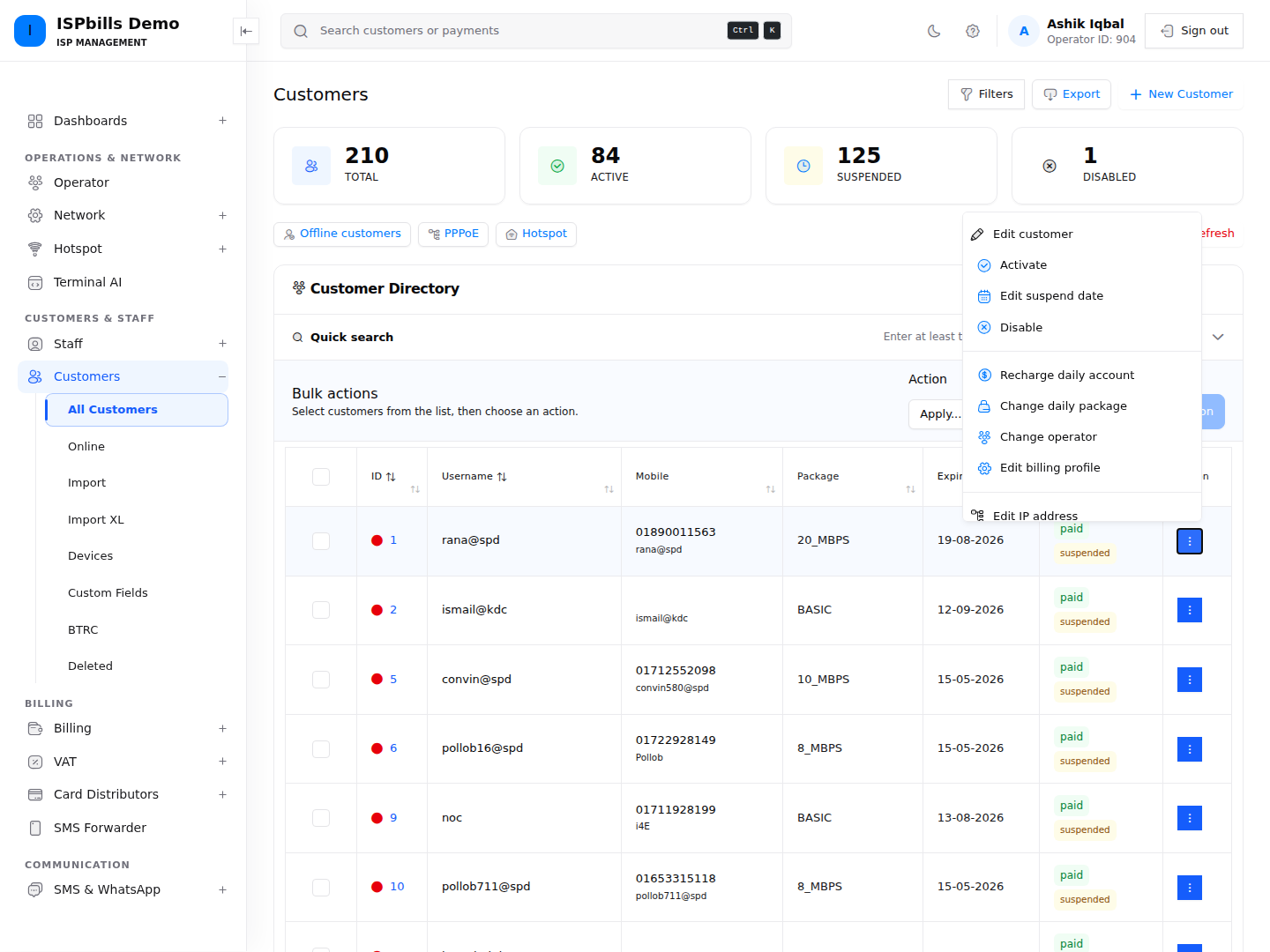
- Find the customer and open its action menu or profile.
- Select an available action, review the affected account and values, and confirm it.
For a bulk action, select the relevant rows in the customer or bill list, choose an option under Apply, and submit it. If an action is absent, confirm the customer type and status first, then ask a Group Admin to check your permission. See Bulk Operations for the online-session MAC and spreadsheet-update workflows.
Need help applying this guide?Browse related guidance or ask the support team for help.