Email Settings
Configure SMTP email, manage templates, and view email history in ISPbills
Configure SMTP email, manage templates, and view email history in ISPbills
On this page
Configure your email delivery system to send invoices, payment receipts, and notifications to customers automatically from ISPbills.
ISPbills uses SMTP for sending emails. You can use any SMTP-compatible provider such as Gmail, Mailgun, Amazon SES, or your own mail server.
Email settings are stored per group administrator, and automatic customer lifecycle emails (welcome, suspension, activation) are delivered through the group admin’s own active SMTP configuration — not a shared system mailer. If no active configuration exists for the tenant, those emails are silently skipped (a warning is logged). Configure and activate SMTP here before relying on lifecycle email.
Overview
The email settings module allows you to:
- Configure SMTP credentials for outgoing mail
- Create and manage email templates for different notification types
- Review sent email history and delivery status
Configuring Email (SMTP)
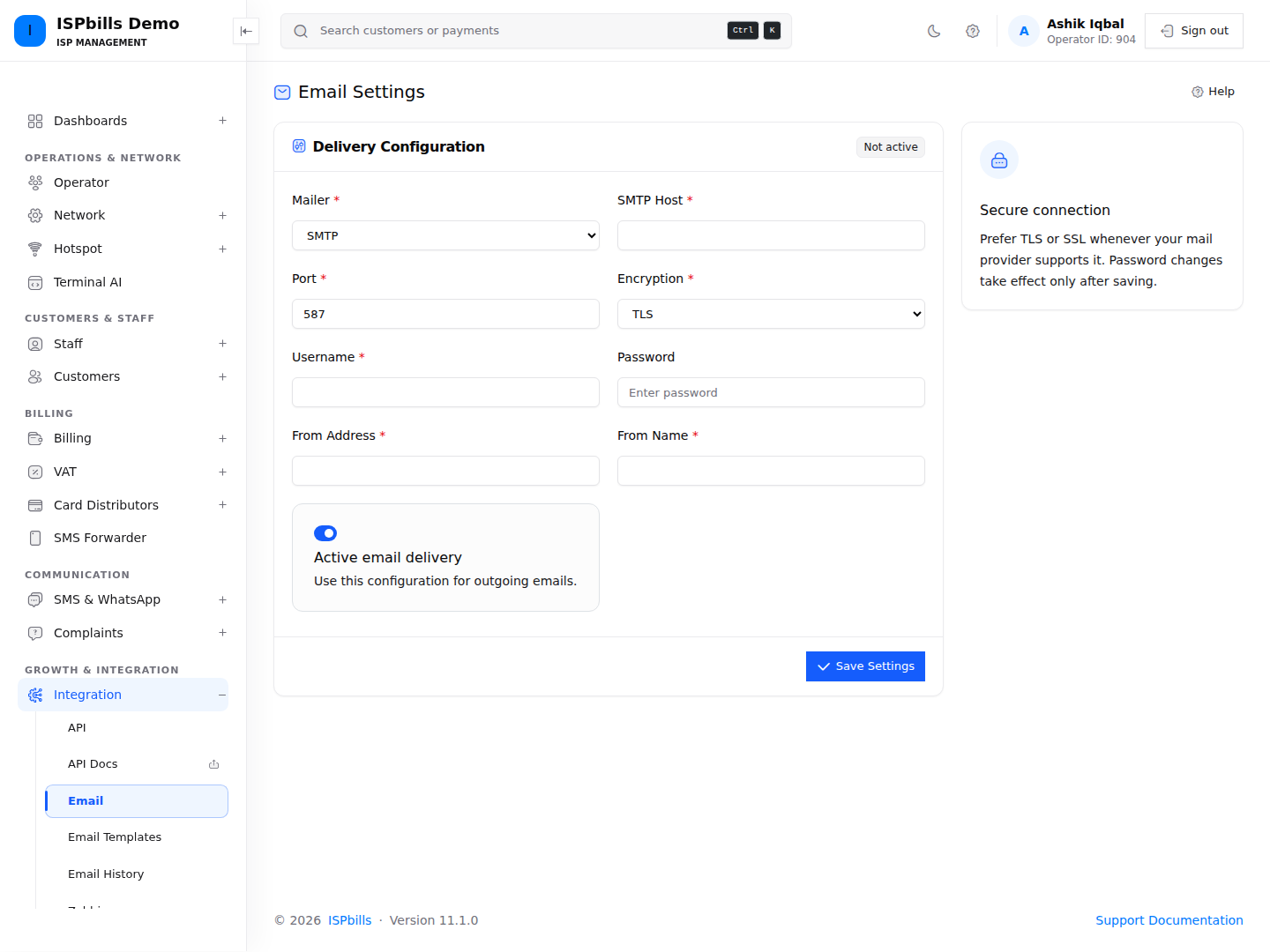
Set up your SMTP connection to enable email sending from the platform.
- Navigate to the email settings section
- Enter your SMTP server details:
| Field | Description |
|---|---|
| SMTP Host | The mail server address (e.g., smtp.gmail.com) |
| SMTP Port | Common ports: 587 (TLS), 465 (SSL), 25 (unencrypted) |
| Encryption | Choose TLS or SSL based on your provider |
| Username | Your SMTP account username or email address |
| Password | Your SMTP account password or app-specific password |
| From Address | The sender email address shown to recipients |
| From Name | The sender display name |
- Save the configuration and send a test email to verify delivery
If using Gmail, you may need to generate an app-specific password and enable access for less-secure apps or use OAuth2 authentication.
Email Templates
Customize the content of automated emails using templates. Each template supports dynamic {{placeholder}} tokens that are replaced with actual data when the email is sent.
The available event types are:
- Welcome — sent when a new customer account is created
- Payment Received — a payment receipt
- Bill Due — an invoice-due reminder
- Suspension — sent when service is suspended for non-payment
- Activation — sent when service is activated or restored
- Custom — for any other communication needs
ISPbills ships polished default templates for the five lifecycle events above, so a freshly provisioned tenant is never empty. See Email Templates for the full list of per-event placeholders, the ready-to-use defaults, and which events send automatically.
To manage templates:
- Go to the email templates section
- Select a template to edit or create a new one
- Compose the subject and HTML body
- Insert placeholders for dynamic content (e.g.,
{{customerName}},{{amount}},{{dueDate}}) - Mark the template Active and save
Preview your templates before activating them to ensure placeholders render correctly and the layout appears professional.
Email History
All outgoing emails are logged in the email history section. Use it to:
- Review each email by recipient and subject or event context
- Check delivery status (pending, sent, failed)
- Inspect the recorded error message for a failed send
Regularly reviewing email history helps identify delivery issues early, especially after changing SMTP settings.
Troubleshooting
| Issue | Possible Cause | Solution |
|---|---|---|
| Emails not sending | Incorrect SMTP credentials | Verify host, port, username, and password |
| Emails going to spam | Missing SPF/DKIM records | Configure DNS records for your sending domain |
| Connection timeout | Firewall blocking SMTP port | Ensure the required port is open on your server |
| Template placeholders not replaced | Wrong placeholder syntax | Check that placeholder names match system variables |
Never share your SMTP credentials. If you suspect a compromise, rotate your password immediately and review email history for unauthorized messages.